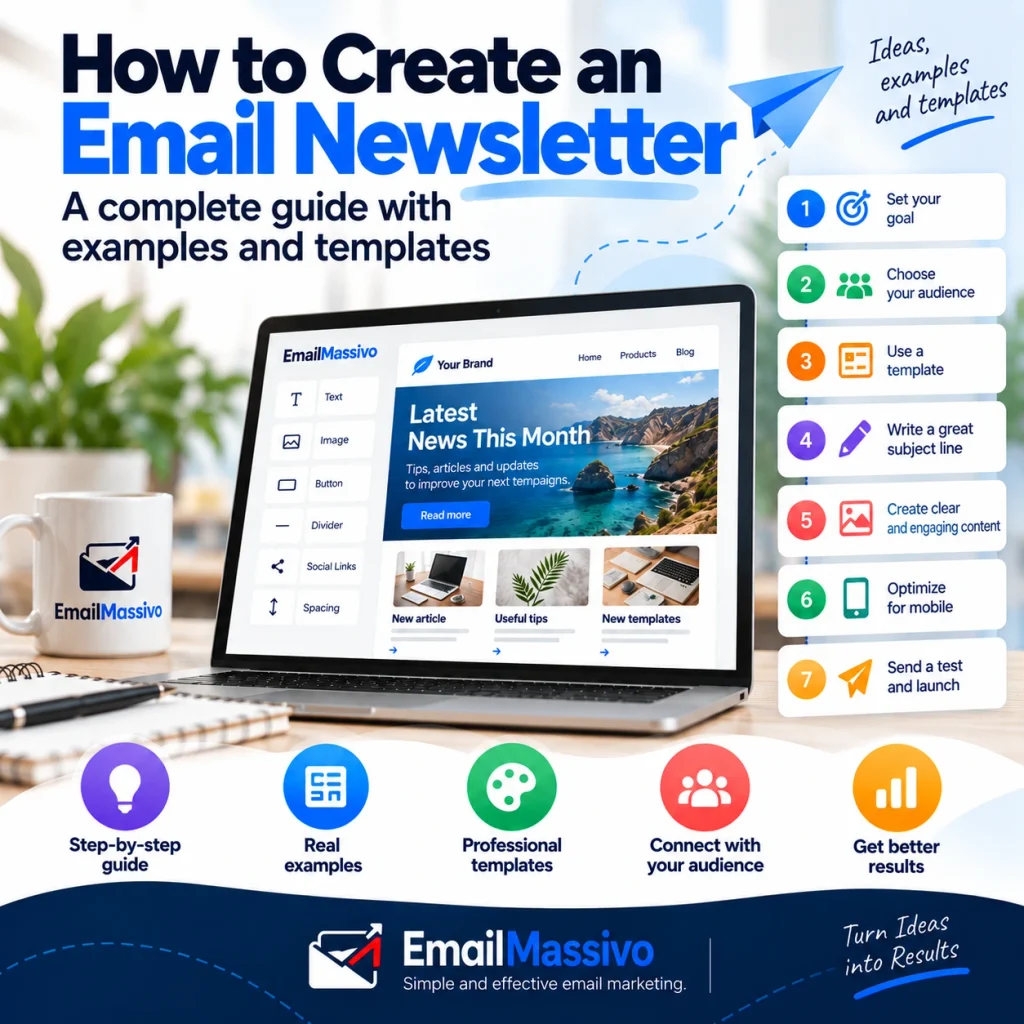
Before opening an email editor, decide what subscribers will get from this edition. Will it share useful articles, announce store updates, or help customers use a service?
That decision shapes the content, the main call to action, and the template. Starting with a design and then looking for enough material to fill it often produces a crowded email with no clear priority.
This guide walks through creating a newsletter from the first editorial decision to the final test send.
How do you create an email newsletter?
Quick answer: Choose one goal and define the audience for the edition. Select a template that fits the content, write a specific subject line and a complementary preview text, then organize the message around one main action. Identify the sender and include a visible way to unsubscribe. Use personalization only when the underlying contact data is reliable. Before sending, check the email on a phone and a computer, open every link, test any variables, and send a proof to yourself.
What is an email newsletter?
An email newsletter is a recurring message sent to people who have subscribed to receive it. It may contain articles, company updates, products, events, recommendations, or educational material.
It does not have to be a series of promotions. A service business might explain a frequent customer question. A store might combine a product update with advice on choosing the right item. A publisher might select its most useful recent stories.
Emails with similar layouts can serve different purposes:
| Email type | Main purpose | Example |
|---|---|---|
| Newsletter | Maintain recurring communication with subscribers | A monthly selection of articles and updates |
| Promotional email | Present an offer or encourage a purchase | A sale announcement |
| Welcome email | Introduce a new contact to the next steps | A message sent after signup |
| Transactional email | Confirm or respond to a specific action | An order confirmation |
Adding a logo and a button to an order confirmation does not make it a newsletter. A newsletter has an ongoing editorial purpose and an audience that expects to hear from the sender.
Give each edition a job
A newsletter can introduce a new guide, explain a product change, promote an event, or keep customers informed between purchases. To turn that broad purpose into a useful edition, finish this sentence:
“After reading this email, I want subscribers to…”
If the answer is “read our new inventory guide,” give that guide the most prominent position. If the answer is “find an event to attend,” make dates and registration details easy to scan.
The goal does not have to be a sale. It should help you decide what belongs in the email.
How to create a newsletter in 10 steps
1. Define the goal of this edition
“Build a stronger relationship with customers” may be a valid long-term aim, but it is too broad to organize a single email.
Turn it into a specific task: explain a new service, answer a recurring question, or share a small set of resources on one topic.
Write down three things before drafting:
- Goal: What should this edition accomplish?
- Main message: What should a reader understand?
- Next action: What can the reader do after opening it?
If a section supports none of these, save it for another edition.
Choose a schedule you can maintain with useful content. A monthly newsletter is more practical than a weekly one if you cannot consistently prepare a worthwhile weekly email. Match the frequency to your editorial capacity and what subscribers were told to expect.
2. Choose the recipients
Not everyone in your contact database needs the same edition.
Existing customers may need different information from people who are still evaluating your business. You can send a general newsletter or select a group using information you actually have.
Start with straightforward criteria: customers of a particular service, subscribers to a topic, or contacts who requested certain updates. Do not infer interests from incomplete data.
Check how people joined the list. Having an email address because someone bought a product does not, by itself, establish that they subscribed to your newsletter.
Keep subscription records, honor opt-outs, and make sure the content matches the communication recipients expected to receive.
3. Pick a template that suits the content
A template gives you a starting structure: a header, text blocks, images, buttons, and a footer.
Ask whether that structure will make your edition easy to read. A striking design is less useful if you have to invent extra sections to fill it.
Browse EmailMassivo’s newsletter email templates with your content outline beside you. Before settling on a design:
- Insert your longest real headline.
- Replace all demonstration text.
- Check how your actual images fit.
- Remove blocks you will not use.
- Apply your brand identity without reducing readability.
A template that looks balanced with a two-word headline may need adjustment when the finished copy goes in.
4. Write a clear subject line
The subject line should tell subscribers what they will find inside.
There is no universal character count that guarantees a good display in every inbox. Put the useful information early and remove words that add little meaning.
| Generic subject line | More specific alternative |
|---|---|
| September Newsletter | 3 resources for organizing your store’s inventory |
| We Have News! | Meet our new collection of compact tables |
| Don’t Miss This | Photography workshop: View the program |
| Special Content | How to prepare your garden for spring |
Use a specific alternative only if it accurately describes the email.
Avoid invented urgency or a subject beginning with “Re:” when the message is not a reply. Read the subject together with the sender name. A recipient should be able to recognize who is writing and what the message offers.
5. Add preview text that complements the subject
Preview text is the snippet some email apps display beside or beneath the subject. Its appearance varies by app and device.
Use it to add information rather than repeat the subject.
Subject: 3 resources for organizing your store’s inventory
Preview text: A counting guide, a checklist, and a tip for planning restocks.
The subject introduces the offer. The preview text shows what is included.
Check a test email in an actual inbox. If the snippet displays template instructions or footer text, review the preview text setting and the start of the message.
6. Give the email a clear hierarchy
A newsletter typically includes:
- The sender’s brand or name.
- A title for the edition.
- A short introduction.
- The main content.
- Secondary content, if useful.
- A call to action.
- A footer with relevant sender information.
- A visible unsubscribe option.
These do not all need separate visual blocks. A call to action often works best beside the content it refers to.
The reader should be able to tell what matters most. If every section uses a large headline and a prominent button, the email loses its hierarchy.
Check the footer as carefully as the body. Replace any sample organization or contact details that came with the template.
7. Write useful summaries and specific calls to action
Each content block should answer a practical question: why should the reader spend time on it?
If the goal is to bring readers to a new article, summarize what they will learn. “Read our amazing new article” gives them little reason to click. “Learn how to count inventory by section and record discrepancies” explains the value.
Button text should describe the destination:
- Read the article
- View the guide
- Explore the collection
- See the schedule
- Register for the workshop
Open the destination before sending. A button labeled “See the schedule” should lead to the schedule, not to a homepage where readers have to search for it.
You can include secondary links. Keep one action visually dominant when the edition has one main goal.
8. Personalize only with data you trust
Personalization includes more than adding a first name. Choosing relevant content for a defined audience can also make a newsletter more useful.
If you use a variable, check that the corresponding contact field exists, is mapped correctly, and contains accurate data. A misplaced value can make a greeting look careless.
Test at least two cases:
- A contact with the field completed.
- A contact with the field empty.
Do not assume a missing value will automatically be replaced with a suitable fallback. Check how the editor handles it and what arrives in the test email.
If the data is unreliable, a simple “Hello” may be better than a broken personalized greeting. A populated field is not necessarily a correct one.
9. Review the finished email on a phone
Test the real copy and images. Placeholder content cannot reveal every layout problem.
On a phone, check whether:
- Text is readable without zooming.
- Images leave essential information visible.
- Buttons are easy to tap.
- Nearby links have enough space between them.
- Columns stack in a sensible order.
- The main action remains easy to find.
Do not put all essential information into a single image. Keep headings, instructions, and key details as text.
Add text alternatives when an image conveys information. Decorative images need different treatment, as the W3C image accessibility tutorial explains.
Review contrast as well. Light text or subtle colors may look appealing in an editor but become difficult to read in an inbox.
10. Send a test and correct the final version
An editor preview helps, but it does not replace checking a received email.
Use a test send in EmailMassivo to inspect the message on a computer and a phone. Open the links and confirm that the images, copy, sender information, and footer belong to this edition.
For personalization, use controlled test contacts and check how variables are replaced. Do not assume every preview or test mode reproduces the behavior of the final campaign in exactly the same way.
If you test the unsubscribe flow, use an address reserved for testing so you do not change a real customer’s subscription.
After changing a link, variable, or important section, send another test. The version you approve should be the version you send.
An example newsletter with one main action
This example is fictional. Stockroom Studio is an imaginary business, and the resources below are sample content rather than published links.
From: Stockroom Studio
Subject: 3 resources for organizing your store’s inventory
Preview text: A counting guide, a checklist, and a tip for planning restocks.
Prepare for your next inventory count
Hello,
This edition brings together three resources to help you plan a count, check your records, and investigate differences before making purchasing decisions.
Start with the counting guide
Break the work into sections, assign responsibilities, and decide where each result will be recorded. The guide walks through those preparations.
Main button: Read the guide
Use the preparation checklist
Review product names, units of measure, and possible duplicate records before the count begins.
Secondary link: View the checklist
A tip before you restock
If the numbers do not match, check whether the difference came from the physical count, the product catalog, or a movement that has not yet been recorded. Find the source before deciding what to replenish.
Footer:
The Stockroom Studio team
You are receiving this newsletter because you subscribed to our retail operations tips.
Unsubscribe
The guide has the main position. The checklist and tip support the topic without competing for attention.
In a real campaign, the buttons would need published destinations, the sender would need accurate identification, and the unsubscribe option would have to work. The reason given for receiving the email must also match how each recipient subscribed.
How to choose a newsletter template
Start with the content outline and find a design that presents it clearly.
| Content in the edition | Useful template structure |
|---|---|
| Selection of articles | Separate blocks with a title, summary, and link |
| Product introduction | Main image, relevant details, and a call to action |
| Short editorial message | Simple layout led by readable text |
| Several updates | Modules you can reorder or remove |
| Event invitation | Date, essential details, and registration |
| Recurring newsletter | Reusable sections readers can recognize |
Consider how much work the design will need. If you must remove nearly everything to make it fit, another template may be a better starting point.
One topic or several content blocks?
A simple newsletter works well when it has one topic and one main action, such as reading a guide or reviewing an event.
Several blocks can work for a curated selection of related content. In that case, keep a clear priority and use headings that let readers scan the edition.
Do not add a section just because the template includes it. Recurring sections can help readers find familiar content, but they do not need to appear in every issue when there is nothing relevant to share.
Common newsletter mistakes
| Mistake | What to do instead |
|---|---|
| Starting without an edition goal | Decide what readers should understand or do |
| Including too many unrelated topics | Select content that belongs in this edition |
| Giving every button equal emphasis | Identify the main action |
| Promising something the email does not contain | Make the subject accurately describe the content |
| Repeating the subject in the preview text | Add a useful detail |
| Making the entire email an image | Keep essential information as text |
| Leaving sample copy in the template | Review every block |
| Using unchecked personalization fields | Test contacts with and without data |
| Linking to the wrong pages | Open every destination before sending |
| Hiding the unsubscribe option | Make it visible and functional |
Also review where contacts came from and whether the newsletter matches what they agreed to receive. Strong writing cannot fix a list of people who did not expect the message.
How to protect newsletter deliverability
An attractive template does not guarantee placement in the inbox. Authentication, sender reputation, list quality, and sending practices also affect how messages are handled.
Check your domain’s SPF, DKIM, and DMARC configuration. Authentication helps receiving services verify a sender’s identity. It does not replace permission-based list building or relevant content.
Sender reputation also needs ongoing attention. Review how contacts joined the list, complaint patterns, sender identity, and whether unsubscribe requests are honored. Send the kind of content subscribers expected.
Distinguish between a hard bounce and a soft bounce. A hard bounce generally indicates a permanent delivery failure; a soft bounce generally indicates a temporary one. Neither is solved simply by changing the layout.
Google’s email sender guidelines include authentication and unsubscribe requirements. For bulk senders subject to the relevant Gmail rules, marketing and subscribed messages must support one-click unsubscribe and include a clearly visible unsubscribe link in the body. The visible footer link and the technical one-click mechanism are distinct.
After sending, review delivery failures and complaints. If messages go to spam, investigate the sending setup and list practices before blaming one word or one color. No design change guarantees inbox placement.
How to prepare a newsletter in EmailMassivo
Once the content and contact list are ready, you can organize the edition as a regular campaign:
- Create the campaign and give it a recognizable internal name.
- Set the sender so recipients know who is writing.
- Select the recipient lists and review the contact count.
- Add the subject and preview text.
- Build the email with the final copy, images, links, and any variables.
- Send a test and correct what you find.
- Review the settings and recipients before confirming the send.
Saving a campaign is a different action from sending it. Check the audience and the finished content again at the final step.
EmailMassivo’s documentation describes review conditions for an initial campaign to a newly uploaded list. If timing matters, prepare the domain, contacts, and content in advance and check the conditions that apply to your account.
Newsletter checklist before sending
Confirm that:
- The edition has a specific goal.
- Recipients match the intended audience.
- The list’s origin and subscriptions have been reviewed.
- The template fits the finished content.
- The sender is recognizable.
- The subject accurately describes the email.
- The preview text adds information.
- No sample copy or images remain.
- The main action stands out.
- Every link reaches the correct destination.
- Informative images have suitable text alternatives.
- Personalization variables have been tested.
- The email reads well on a phone and a computer.
- The footer identifies the sender and provides an unsubscribe option.
- Domain authentication has been reviewed.
- The last test email matches the version about to be sent.
Newsletter FAQ
An email newsletter is a recurring message sent to an audience that subscribed to receive it. It can share articles, recommendations, products, events, or updates. Its purpose is to maintain an ongoing relationship through useful content; every edition does not need a promotion.
Choose one goal and an audience. Pick a simple template, write a clear subject, organize the content around a main action, and add accurate sender details and an unsubscribe option. Check links, layout, and personalization with a test send before sending to subscribers.
Include material relevant to the audience and consistent with what people expected when they subscribed. That could be a guide, selected articles, or product news. There is no mandatory mix of sections. Choose the content that serves this edition’s goal.
A common structure includes a recognizable sender, a title, a short introduction, the main content, a call to action, and a footer with an unsubscribe option. Add secondary content when it helps. Readers should quickly understand why they received the email and what they can do next.
Compare templates with the content you plan to send. Check the order of sections, mobile layout, readability, and how easily you can remove unnecessary blocks. Test the design with your actual text and images rather than choosing from the demonstration alone.
A newsletter is one type of email marketing. Email marketing can also include promotional campaigns, welcome messages, and other communications. A newsletter usually has a recurring schedule and a recognizable editorial promise to its subscribers.
There is no universal schedule. Choose a frequency you can sustain with useful content and that fits what subscribers were told to expect. Review their response over time. Sending more often simply to fill a calendar does not make each edition more relevant.
Yes. Design alone does not determine inbox placement. Authentication, reputation, list quality, complaints, and sending behavior can all affect delivery. Review those factors when diagnosing a problem; an attractive template cannot guarantee where a mailbox provider places a message.
Start with the edition you can send well
Write the goal, audience, main message, and next action before choosing a design. Then select a template, add the finished content, and test the result as a recipient would see it.
Explore EmailMassivo’s email templates to find a structure you can use for the first edition and adapt for future newsletters.