These 15 EmailMassivo layouts cover subscriber confirmation, customer accounts, appointments, promotions, feedback, sales conversations, and project communication. Each example below links to its actual catalog page and explains what to replace before use. “Ready-to-use” means a starting structure for adaptation—not a message with your links, recipient data, and sending process already configured. The screenshots show only the upper portion of each preview, not the complete email. Start with the business task in the table, then review the corresponding layout and its specific changes.
| Business task | Template | What to customize first |
|---|---|---|
| Confirm a newsletter signup | Welcome Email for New Subscriber | Newsletter name and confirmation destination |
| Verify a customer account | Generic Digital Account Verification | Service name and verification link |
| Confirm an appointment | Appointment Verification Request | Booking details and confirmation action |
| Promote free shipping | Free Shipping Today Only | Eligibility, deadline, and code |
| Request service feedback | Cleaning Service Client Feedback | Service reference and survey link |
| Introduce services | Product Hacks | Service blocks and offer |
| Share a guide | Pillars of Email Marketing | Guide title, cover, and destination |
| Share customer stories | Case Studies | Verified stories and results |
| Arrange a personal demo | Book a Demo | Meeting scope and booking link |
| Confirm event registration | Event Confirmation | Attendee, event, and access details |
| Report a password change | Password Changed | Service identity and support route |
| Confirm a plan upgrade | Thank You for Upgrade | Actual plan and effective date |
| Report project progress | Project Status Report | Reporting period and evidence |
| Share a recorded demo | Watch the Demo | Recording, thumbnail, and duration |
| Deliver completed work | Project Delivery Details | Deliverables and review destination |
1. Welcome new subscribers and confirm their signup
Use this layout when someone has requested a newsletter subscription but still needs to confirm their email address. It combines a welcome with a double opt-in request; it is not simply a greeting sent after confirmation is complete.
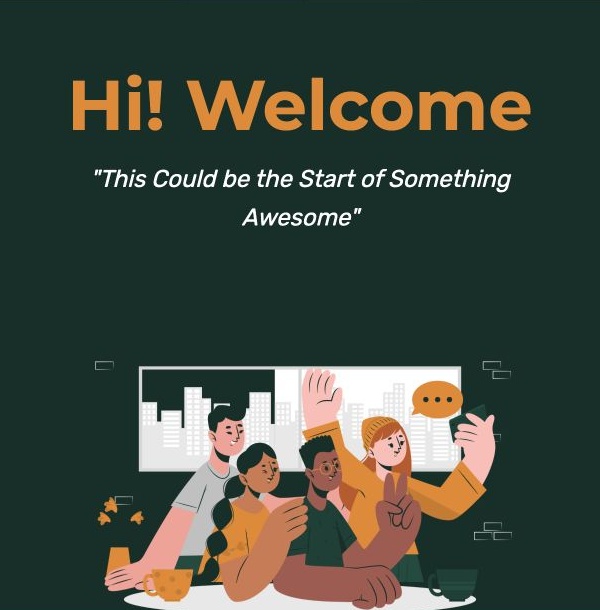
The full preview moves from a greeting and illustration to a confirmation button, an explanation for unexpected signups, and a product strip. Keep the confirmation request distinct from the optional shopping content.
Replace the newsletter name, sender contact, button destination, and sample products. Rewrite the surrounding copy so that confirming a mailing-list subscription is not confused with creating a customer account. Connect the button to your actual confirmation process before sending.
2. Verify a new customer account
Choose this account-verification layout for a SaaS product, membership area, or other service after registration. The next action is confirming an email address or activating access, rather than joining a marketing newsletter.
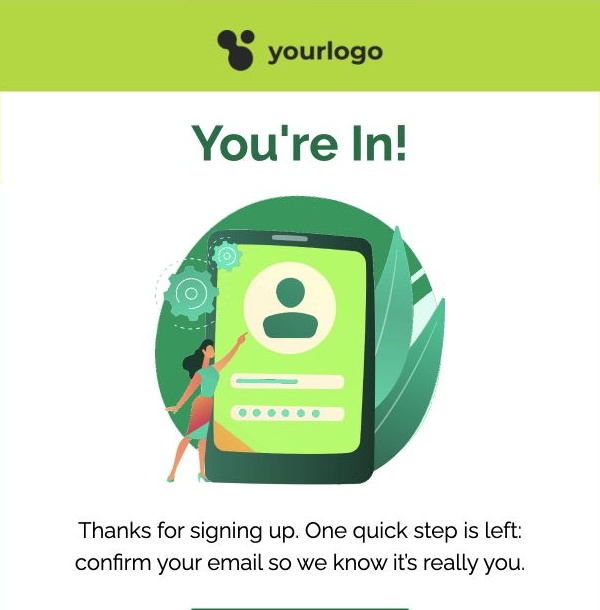
The preview uses a short introduction, one confirmation button, and an explanation of what follows. Its sample copy mentions profile setup and team invitations; retain those steps only if your service actually provides them.
Replace the service name, verification destination, support contact, and post-confirmation instructions. The design does not generate verification links or activate accounts by itself. Your application or configured sending workflow must supply the correct recipient-specific link and handle its result. Test both successful confirmation and an unexpected signup.
3. Confirm an appointment
Send this appointment-verification layout when a booking has been scheduled and the recipient needs to check its details or confirm attendance. The demonstrated Travel & Hotel branding requires adaptation before use by another type of business.
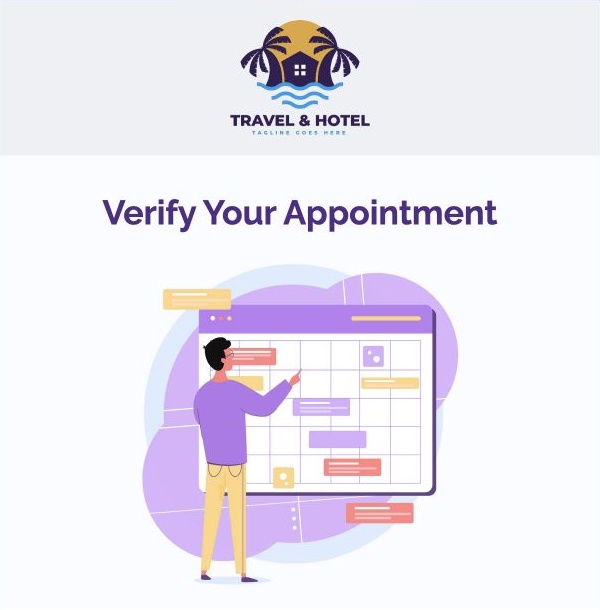
The full email places the date, time, and confirmation action before a checklist of items to bring. It also contains travel-related promotional content; remove that material if it does not belong in your appointment message.
Replace the customer name, service, date, time zone, location, booking reference, and confirmation link. Keep only genuinely required documents in the checklist. Decide whether the button confirms attendance, opens booking details, or starts rescheduling, and label it accordingly. A confirmation request should not imply attendance is already confirmed.
4. Promote a limited-time shipping offer
Use this promotional layout for an ecommerce shipping offer with a defined audience, eligibility rule, and closing time. The large offer headline and shopping button provide the structure; the actual commercial terms must come from your store.
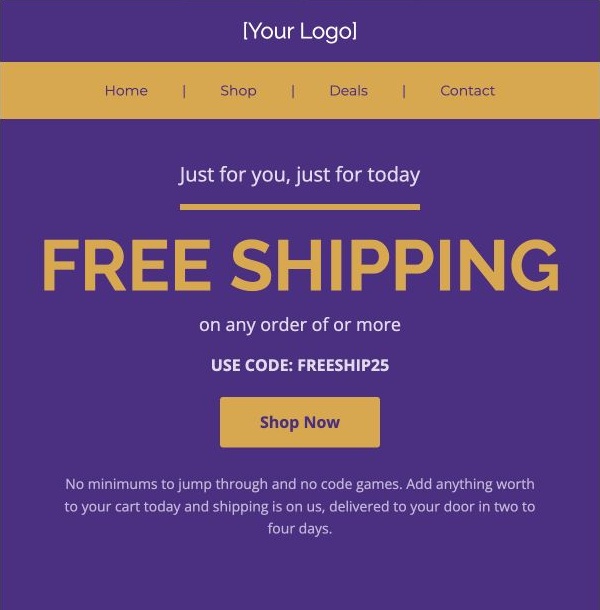
Do not copy the demonstration conditions unchanged. The source contains conflicting minimum-order wording, and the preview leaves the threshold amount incomplete. Supply an explicit amount and currency if a threshold applies, or remove threshold language consistently if none applies.
Replace the code, eligible delivery areas, expiry date and time zone, store destination, and delivery estimates. Make the headline, explanatory copy, landing page, and checkout agree. “Today only” needs a real deadline, not an indefinitely reused subject line.
5. Ask customers for service feedback
Choose this feedback request after a customer has received a service and can comment on the experience. The example is written for a cleaning business; adapting it to another service means changing the context, not merely swapping the logo.
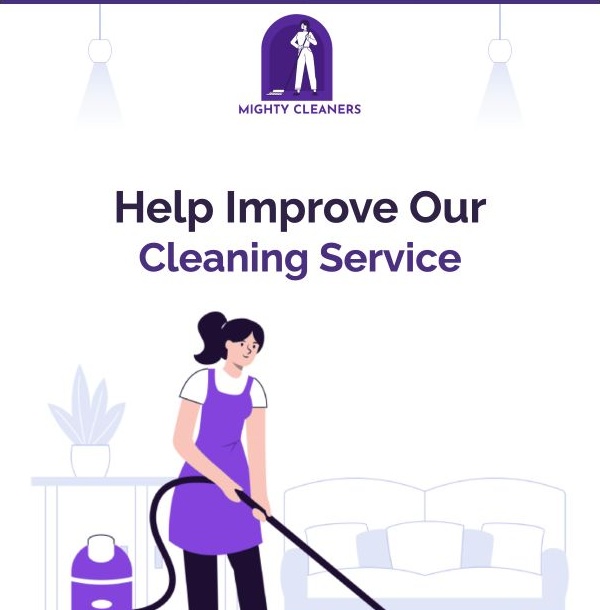
The message begins with a direct feedback question and a button leading to the next step. Further down, it introduces cleaning services and another contact action. Keep those supporting sections only if they do not distract from the survey.
Replace the service name, customer greeting, visit reference, and feedback destination. Choose timing that matches when the service was completed. Check the actual survey length before retaining the sample’s time estimate. Ask for an honest response rather than implying that only positive comments are wanted.
6. Introduce your services in a newsletter
Use Product Hacks to introduce an agency or service-company offer to an appropriate newsletter audience. Despite its catalog name, the current layout presents services rather than a collection of product tips or a release announcement.
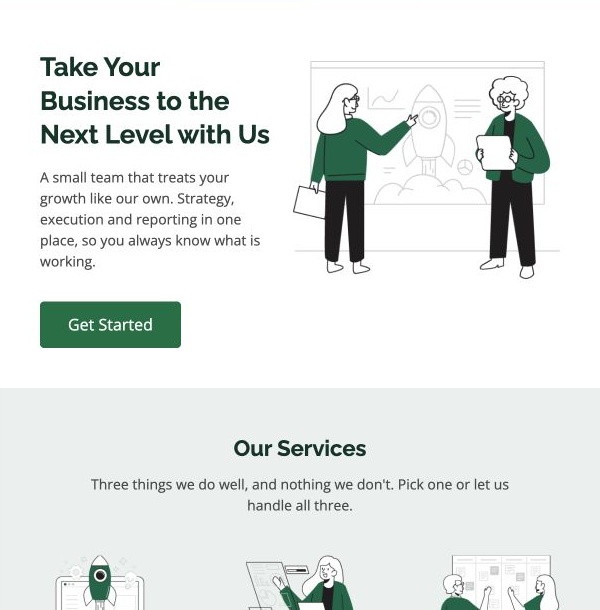
The opening combines a service proposition, illustration, and Get Started button. Below it, service blocks and explanatory sections provide room to describe the work offered.
Replace the company name, service categories, illustrations, offer description, and destination. Rewrite or remove demonstration claims about results, monthly pricing, and the ability to pause a plan unless they match your real terms. Choose a specific next step—such as viewing a service page or requesting a conversation—rather than leaving the button’s purpose undefined.
7. Share an ebook or practical guide
Choose this layout when you have an actual guide or ebook to share. It introduces the subject, shows a cover image, and offers a reading action before expanding on the material’s contents.
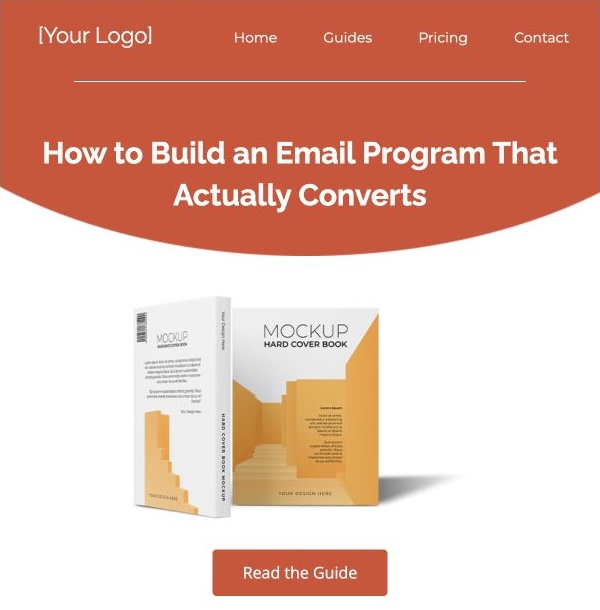
The full preview adds numbered topic blocks beneath the main button. Use those blocks to summarize sections your own resource genuinely covers, rather than promising outcomes the document does not support.
Replace the title, mockup cover, topic summaries, and reading destination. State whether the recipient will open an article, view a PDF, or reach a download page. Check any access requirement before describing the next step. This preview is a template demonstration, not evidence that EmailMassivo supplies the ebook shown.
8. Show prospects relevant case studies
Send this case-study digest when prospects need concrete examples of work related to their situation. Select stories relevant to their problem instead of filling every available block with unrelated projects.
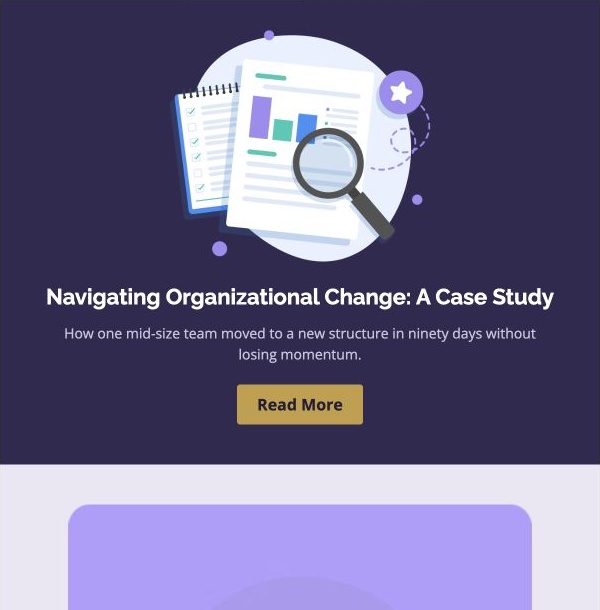
The full layout combines illustrated story summaries, Read More links, and an archive destination. A short introduction can explain why the selected cases belong in the same edition.
Replace every title, summary, image, result, and destination with material you can substantiate. Specify the period and scope behind any numerical claim, and obtain permission where needed to identify a client. The sample organizations, timelines, and outcomes are demonstration copy—not EmailMassivo customer evidence. Remove unused story blocks rather than inventing another case to complete the layout.
9. Invite a prospect to book a personal demo
Use this invitation when the next step is a live, individual demonstration with a company representative. It asks the reader to arrange a meeting, unlike the recorded-video layout in section 14.
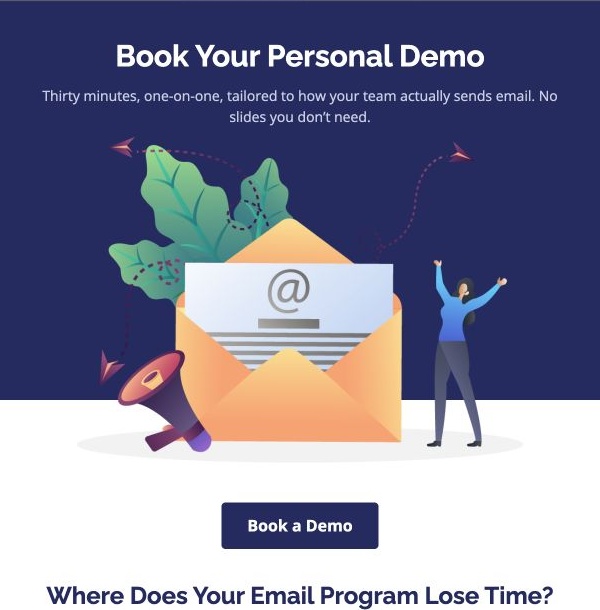
The preview introduces a personal demo, a booking button, and a diagnostic question about the recipient’s work. Lower sections describe the proposed session and provide a named contact.
Replace the meeting topic, actual duration, booking destination, representative, and contact details. Do not retain promises to rebuild a campaign during the meeting unless that is genuinely included. Check what the booking link does and how confirmation reaches the prospect. The layout itself does not supply a calendar or automatically reserve a meeting.
10. Confirm an event registration
Choose Event Confirmation after registration has succeeded. Its purpose is to give the attendee a clear record of the event and participation details, not persuade an unregistered reader to sign up.
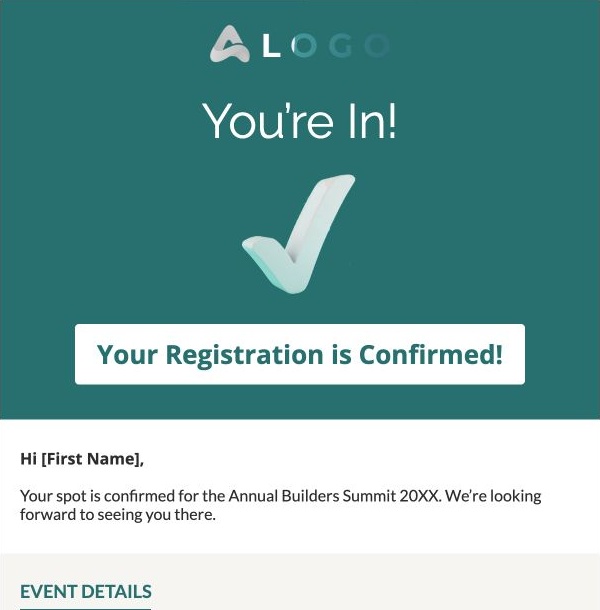
The layout leads with the confirmation state and follows with an event-details block. The full example includes an attendee name, ticket reference, date, venue, and contact address.
Replace the event title, recipient fields, date, time zone, reference, and location or joining link. Include entry instructions that match the actual event, and remove unrelated navigation if it obscures those details. Confirm that the reference belongs to the recipient. Do not send a “registration confirmed” message merely because someone visited an event page or received an invitation.
11. Notify a customer that their password changed
Use Password Changed as a service notification after a password change has actually occurred. It is not a password-reset request and should not ask the recipient to send a password or verification code by email.
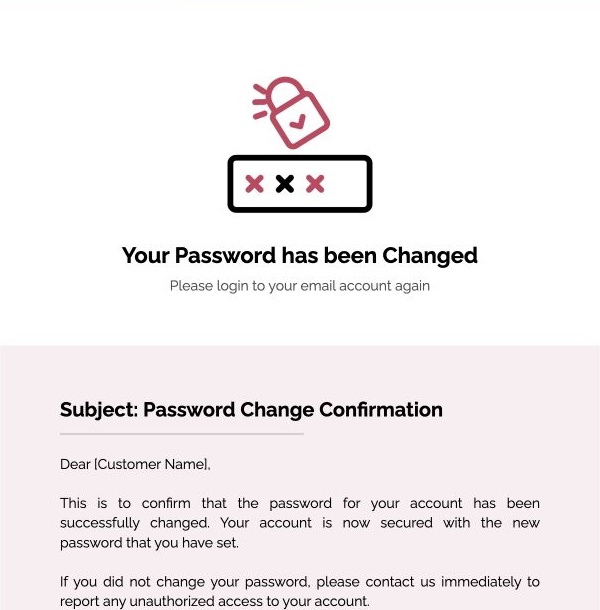
The example confirms the change and tells the recipient to contact support if they did not initiate it. Its account-access button and explanatory material need review against your own security process.
Replace the service identity, customer reference, support route, and account destination. Make the unexpected-change action specific and usable. Review the entire security advice block rather than inheriting claims from demonstration text. Connect sending to the confirmed account event, and keep unrelated offers out of the notification. No password should appear in the populated message.
12. Confirm a plan upgrade
Send this confirmation after a customer’s plan upgrade becomes effective. It should explain the account change and available next steps, rather than use an upgrade announcement to imply that payment or activation has happened when it has not.
The full email pairs an upgrade headline with account benefits, billing-related wording, and support information. Those details are examples, not a statement of EmailMassivo’s current plans.
Replace the customer name, actual plan, effective date, included features, conditions, and account link. Retain billing statements only when they reflect the customer’s arrangement. This layout is an upgrade confirmation, not an invoice or payment receipt. Align the message with the status recorded in your application.
13. Report project progress to stakeholders
Choose this status-report layout for a defined reporting period when stakeholders need milestones, outcomes, risks, and next actions. The example uses a quarterly review, but the period should match your reporting process.
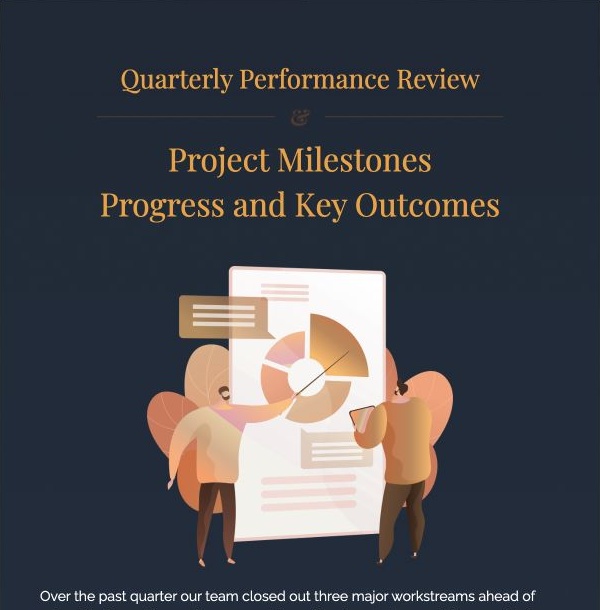
The full preview combines narrative progress updates with a View Full Report button and supporting topic links. Use the email for decision-relevant changes; keep detailed supporting records at the linked destination.
Replace all sample achievements and numbers with verified project data. Identify the period, responsible people, unresolved items, and next steps. Do not present planned work as completed. Check access to the report and provide a genuine response route if recipients may need clarification. Demonstration figures are not evidence of EmailMassivo or client performance.
14. Share a recorded product demo
Use Watch the Demo when a prospect or new customer can explore a prepared recording without booking a meeting. Adapt the introduction for either initial product evaluation or onboarding, rather than treating those audiences as interchangeable.
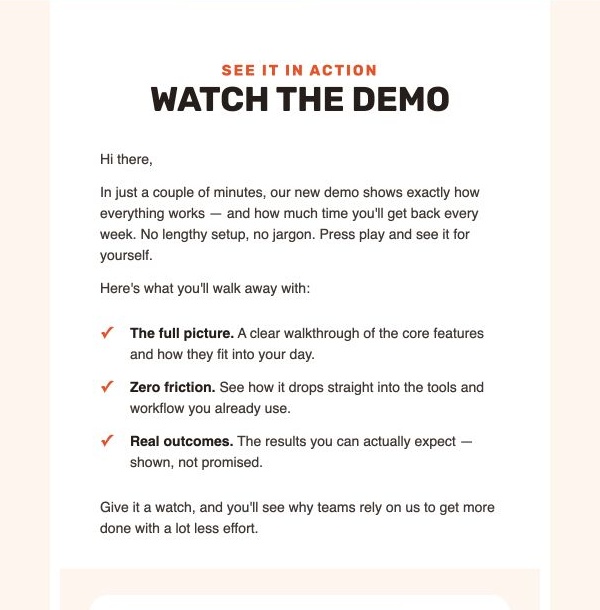
The full email introduces the demonstration, lists what it covers, and provides a viewing action. Its value depends on the recording matching the description.
Replace the thumbnail, feature summary, actual duration, and video destination. Direct the button to a page where the recording can be watched; do not promise playback inside the recipient’s email application. Remove unsupported claims about saved time, integration, outcomes, or reply speed. Unlike Book a Demo, the primary action here is viewing existing material, not scheduling a representative.
15. Hand over completed client work
Choose Project Delivery Details when a defined project or milestone is ready for the client’s review. This is a handover of work, not a parcel-shipping notice or tracking update.
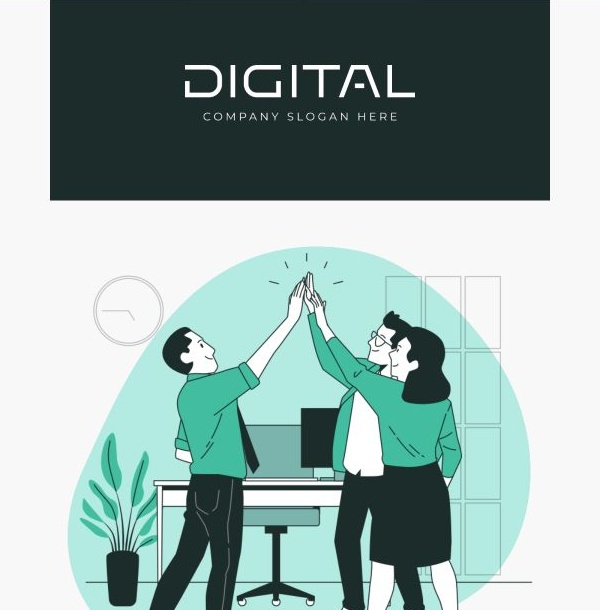
The full layout announces readiness, provides a View Project action, and groups deliverables into project-detail blocks. Those blocks can distinguish design, development, documentation, or other relevant work.
Replace the project name, completed items, review or file destination, requested response, and contact. Check permissions so the client can actually open the deliverables. Keep statements about testing and readiness only when verified. Explain whether you need feedback, approval, or another next step, without suggesting that sending this email alone establishes formal acceptance.
What to change before sending your first email
Replace the visible brand, sample names, dates, prices, product images, addresses, and contact details. Review every block, including material below the screenshot. Delete sample case results, security claims, response-time promises, and plan benefits that do not apply.
Open every destination in the populated version: buttons, linked images, navigation, account access, support, and footer links. Map personalization to the variables supported by your actual sending system and test missing-value fallbacks. Bracketed names in a preview are not proof that personalization is configured.
Confirm the message’s purpose and offer with its owner. Newsletter confirmation, account verification, event registration, and password-change notifications require different events and recipient logic from a promotional campaign. The layout does not implement those processes. Review subscription controls for marketing messages and the appropriate handling of service notifications separately.
Check a narrow-width preview, then send a test through the intended workflow to controlled inboxes. Inspect the received text, image loading, links, subject, and reply destination. The supplied images document web previews; they do not establish Gmail, Outlook, or mobile-email compatibility. Correct the finished message and test again after material changes.
For broader selection criteria, see the guide to choosing email marketing templates. To find a different starting layout, browse the EmailMassivo template catalog.